Build an agentic CAD factory
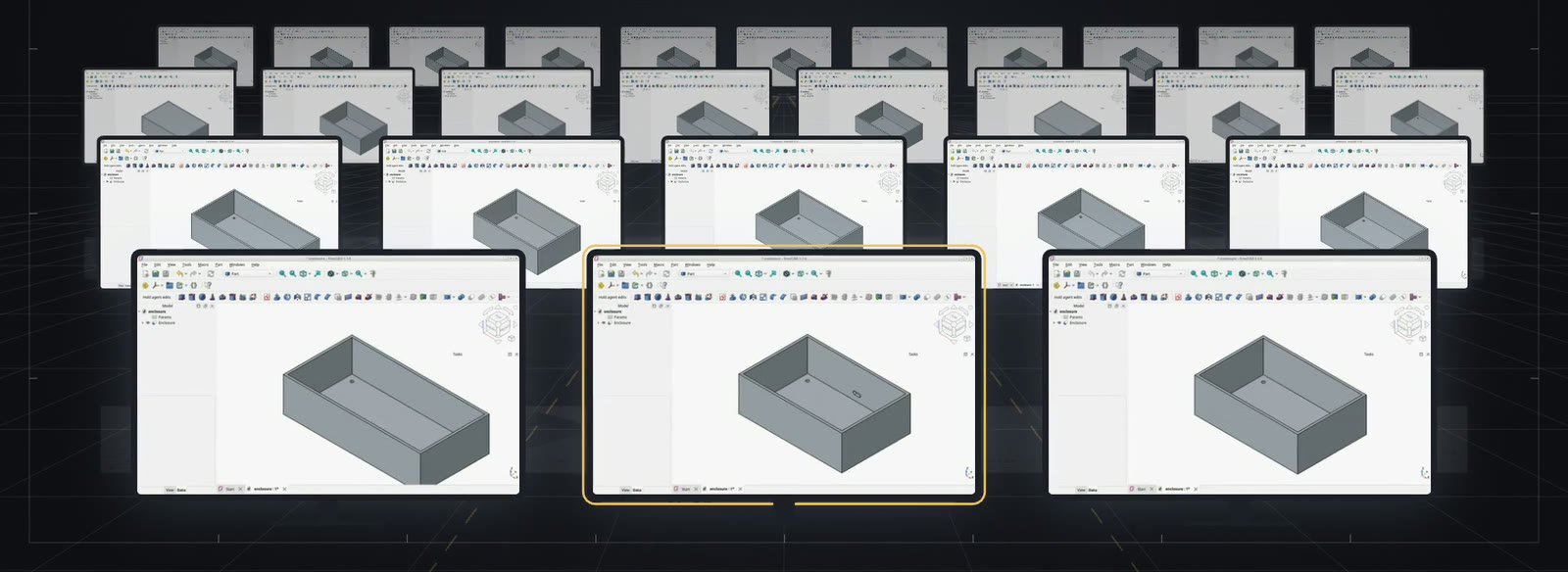
Software teams are building factories: many AI agents working at once, each in its own isolated environment, while people write the specs and check the results. The agents write, test and ship code. The people decide what gets built and what's good enough to ship.
With Sanbox, you can build one for CAD: an agentic CAD factory. A lot of design work is changes to parts that already exist: a cable cutout in a housing, a longer version of an enclosure, a different mounting hole, a variant for another connector. Each change has a clear spec and a result you can check. That's work agents can take on, many at a time.
But CAD doesn't run in a terminal. Coding agents get by with a shell and a checkout. A CAD agent needs the CAD program itself, with its desktop, its geometry kernel and its file format. So each agent needs its own workstation.
A CAD workstation in the cloud
On Sanbox, each agent gets its own CAD workstation: an isolated cloud computer with a desktop, your CAD program, your parts and your rules.
- Your CAD program. This post uses FreeCAD as an example. The agent works inside the running program, through its scripting interface, so every change is made with the program's own tools.
- Your parts. Your models, templates and part libraries are on the workstation's disk.
- Your rules. Your design rules go into the agent's instructions: minimum wall thickness, standard hole sizes, the features your shop can make. The agent checks its changes against them.
- An AI agent. It takes requests in a chat in your browser, makes the change and shows you the result.
The result is a native model file your engineers can open and keep working on, not a mesh from a separate generator.
Set up one, run as many as you need
You prepare one workstation: install the CAD program, load your parts and write the rules. Then you save it as a snapshot template. Every new workstation starts from that saved state, with the program open and the model loaded.
From there, Sanbox runs as many copies as you need. Each one is its own computer with its own agent, so change requests don't wait in line behind each other. A warm pool keeps workstations started and waiting, so a new one is ready in a few seconds. And you can fork a stopped workstation to try two approaches from exactly the same point.
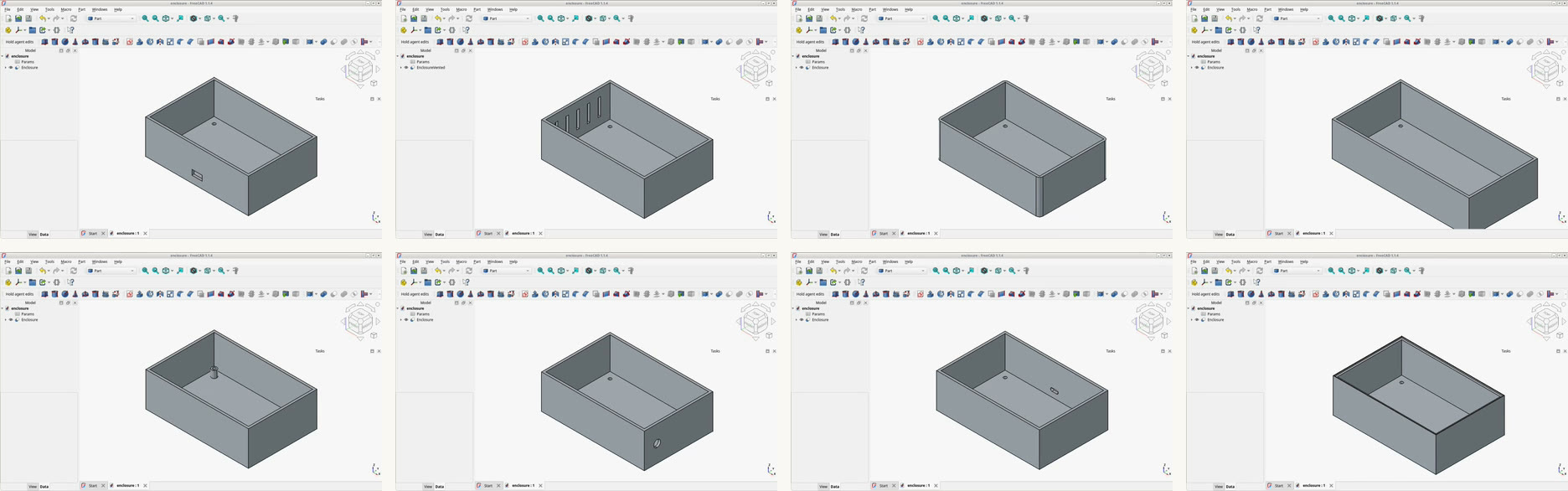
These workstations all started from one FreeCAD template. Each agent got a different change request and worked on it at the same time as the others.
Spec in, model out
You give the agent a spec the way you'd give it to an engineer. This one went to the agent on the left of the grid above:
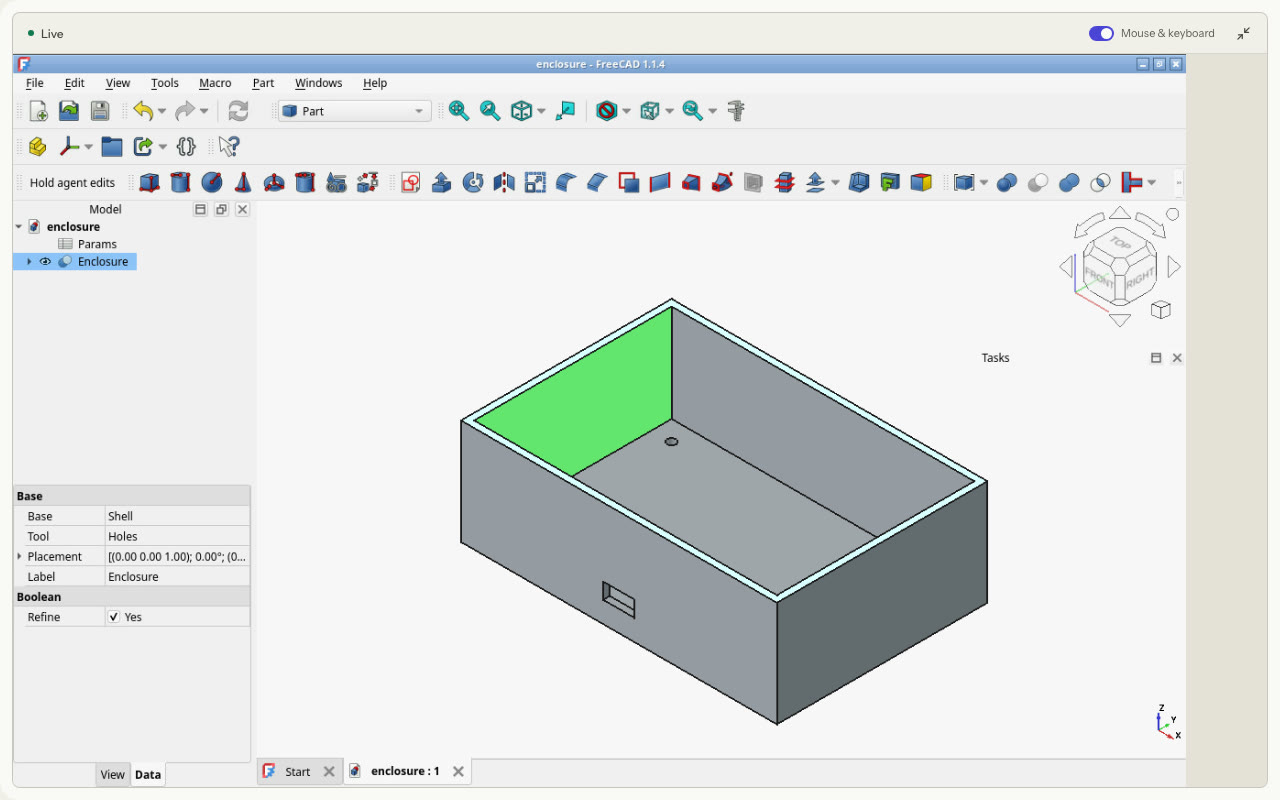
Add a 12 x 6 mm rectangular cable cutout through the middle of the front wall, with its bottom edge 5 mm above the floor. Keep it parametric, check the part is valid, save, and show me an isometric view.
The agent makes the change in FreeCAD, checks that the part is still valid, saves the model and renders the view you asked for, so you can check the result too. Each edit runs as a single step in the program. If something goes wrong partway through, the model goes back to how it was before.
You stay in control
Physical parts need an engineer's sign-off, so every workstation is live in your browser:
- Watch any agent. Open any workstation and see the CAD program as the agent uses it.
- Take the controls. Switch on mouse and keyboard and work in the model yourself: rotate it, select a face, fix something by hand.
- Hold its edits. One button in the CAD toolbar holds the agent's edits. While it's on, the agent can't change the model. Press it again to let the agent continue.
Isolated by default, and every file comes back to you
Your parts are your intellectual property, so each workstation is sealed off. It's its own virtual machine, separate from every other workstation. It can't reach the internet by default. It reaches the model provider you choose and the destinations you allow, such as a licence server or your PDM system, and nothing else. You set that list per template, and Sanbox enforces it outside the workstation.
Every file the agent makes comes back to you. Download a stopped workstation's output with one command:
sanbox runs download <run-id> --output parts/
That gives you the part as a STEP file, along with the views the agent rendered. Use sanbox cp to copy files out while a workstation is still running.
We'll set it up with you
Every engineering team works differently, so we build the first version with you. Our forward-deployed engineers set up the workstation with your team: your CAD program, your part library, your design rules, the checks you trust, and how finished files get back into your PDM or ticket system.
To build your agentic CAD factory, talk to us at sales@sanlabs.ai.