Always-On Sanbox Computers for Supabase
Sanbox now has a native integration with Supabase Cloud.
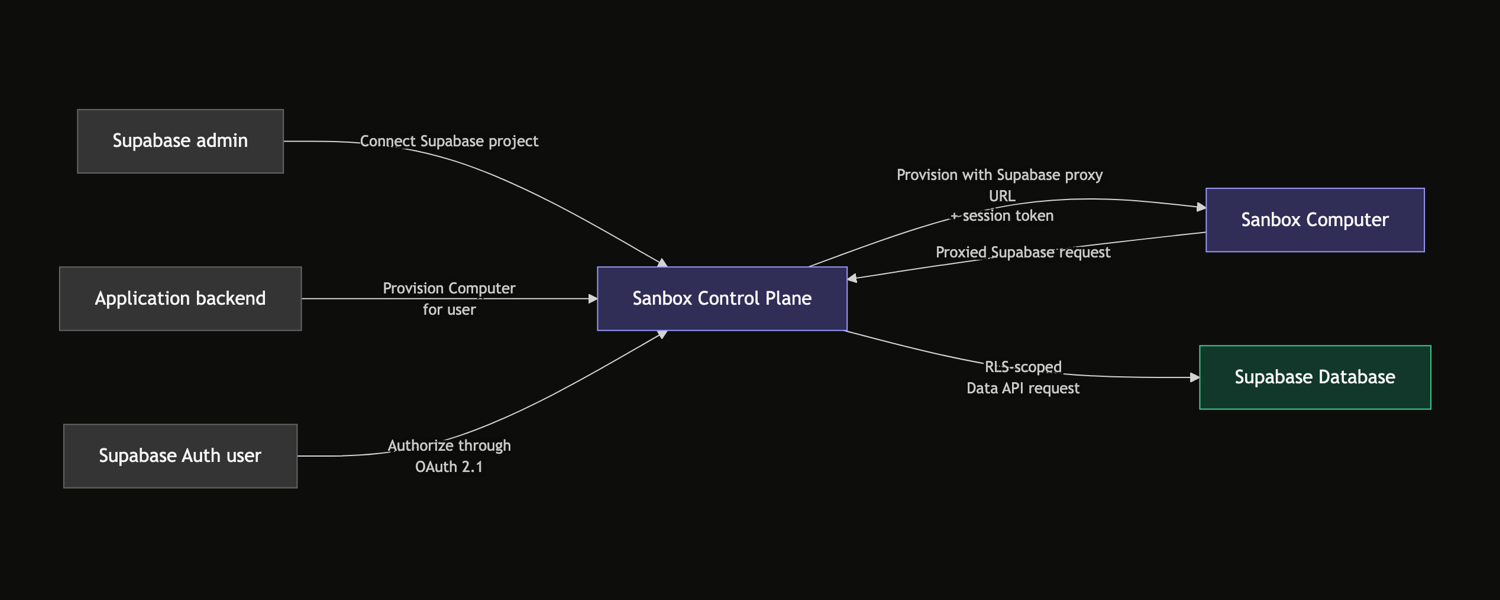
Your application can create an always-on agent for a specific Supabase Auth user. The user signs in with your existing Supabase Auth flow and approves the connection. The agent can then make read-only requests to the Supabase Data API as that user.
Supabase applies the project's normal Postgres permissions and Row Level Security (RLS) policies to each request. Sanbox does not need a service-role key, and the agent does not receive project-wide database access unless the connected user's permissions already provide it.
What Can You Build?
Customer support
A support Computer can reconstruct what happened before it drafts an answer.
Example: A customer reports that an upgrade failed but their card was charged. The Computer reads the records available to that customer from orders, subscriptions, support_tickets, and usage_logs.
The Computer builds a timeline, points to the order and invoice IDs behind its conclusion, and drafts a reply with the next recommended step. A support agent reviews the evidence and edits the answer before it is sent. The Computer has useful account context, but its database reads still run as the customer who approved access.
Case and compliance work
A Computer can turn scattered case records and documents into a traceable working file.
Example: An investigator opens a vendor-onboarding case. The Computer reads the cases assigned to that investigator from cases, case_assignments, and audit_events. The case application provides the contracts, identity documents, and prior correspondence selected from a private Storage bucket.
The Computer creates a dated evidence map, identifies missing documents, and flags conflicts between the submitted files and the recorded audit trail. It keeps the analysis and source list in its retained workspace so the investigator can return to the same review later. It does not need an administrative database key, and it cannot read cases outside the investigator's effective permissions.
GTM agents
A persistent GTM Computer can give sales and customer-success teams a current account view without rebuilding the story before every customer conversation.
Example: Before a renewal call, the customer application asks a Computer assigned to the account owner to prepare a briefing. The Computer reads the Supabase records that person may access from accounts, subscriptions, usage_events, and support_tickets. Through separately approved tools, it also gathers the deal stage and account notes from HubSpot or another CRM, plus transcripts and action items from previous customer meetings.
The Computer shows what changed since the last conversation, which commitments remain open, where product adoption is growing or falling, and which support issues could affect the renewal. It turns that context into a call brief with suggested questions, risks, and expansion signals. After the meeting, the customer application can supply the new transcript so the Computer can draft a follow-up email, next-step list, and proposed CRM update for the account owner to review.
Operational research
A Computer can combine internal operating data with documents and external research, then show how it reached a recommendation.
Example: A procurement team wants to know whether to renew a supplier after a series of late deliveries. The Computer reads permitted records from purchase_orders, suppliers, and delivery_events. The procurement application provides the relevant contracts and certificates from Supabase Storage, while an approved browser tool gathers current market alternatives.
The Computer produces a supplier comparison with delivery performance, contract constraints, outside sources, and open assumptions. A buyer can inspect the evidence before accepting the recommendation. The customer application can then save the approved report and its supporting artifacts to a Storage bucket for the wider team.
Why Use a Sanbox Computer Instead of Building Yet Another Agent?
- Persistent, like a laptop – Files, memory, tools, and learned skills stay on the Computer's disk between tasks. The agent can pick up where it left off instead of starting from an empty environment each time.
- Native OAuth 2.1 and RLS integration – Users approve access with their existing Supabase Auth account. Their Postgres permissions and RLS policies continue to control what the Computer can read.
- Always on and self-improving – The same Hermes agent can receive work over time, retain useful memories, and turn repeatable procedures into skills that it can use on later tasks.
- MicroVM agent sandbox – Each Computer runs in a dedicated Firecracker microVM. This places a hardware-virtualized boundary around the agent and the code it runs instead of relying only on a shared-kernel container.
- Network policy – You decide which public services, domains, IP addresses, and IP ranges the agent can reach—or give it no general internet access. Everything else stays blocked.
- Secret proxy – The agent receives a temporary local credential instead of the real Supabase access or refresh token. Sanbox validates each request and adds the current user token outside the microVM, so the upstream tokens never enter the agent environment.
How It Works
- Connect your Supabase project once. In the Sanbox console, sign in to Supabase and choose the Supabase Cloud project your Computers should use. Configure the project's OAuth 2.1 server and register Sanbox as an OAuth client so your application users can approve access later. Sanbox imports a sanitized map of the project's public Data API tables and columns. It does not copy table rows, and the map does not grant access to any data.
- Define your Sanbox Computer once. Create a Sanbox template with the model, resources, tools, and network policy. The Supabase connection stays at the Sanbox organization level, so you can reuse the same approved project connection without putting Supabase secrets in the template.
- Provision a Computer for a user. From your backend or the Sanbox CLI, create a Computer from the template and include the user's Supabase Auth ID. Sanbox gives you a short-lived consent link for that user. They sign in with your existing Supabase Auth flow and approve the connection; they do not need a separate Sanbox account. Sanbox preloads the imported table and column map, along with a Supabase query helper, into the Computer's workspace. The agent can discover the schema from its first task, while every data request still runs as the connected user and passes through the project's Postgres permissions and RLS policies.